Installation
Step 1: Understand Your Environment & Prerequisites
What You’ll Need
-
Access to the GitHub repository where Bouncer will run.
-
Admin permissions to install GitHub Apps (for the Bouncer PR Bot).
-
At least one active TestParty project configured in the TestParty Hub.
-
A TestParty API token (for advanced configurations, if required).
-
A simple test component (e.g., an image tag without alt text) to verify Bouncer is working.
Notes
-
If your GitHub organization has strict security filters or firewalls (e.g., CloudFront restrictions), you may need to allowlist GitHub event delivery to the Bouncer bot.
-
Ensure GitHub Actions are enabled for your repository (Bouncer depends on webhook events).
Step 2: Installing and Configuring Bouncer
-
Install Bouncer PR Bot
-
Go to the GitHub App installation link provided by TestParty: https://github.com/apps/testparty-bouncer/installations/select_target
-
Select the repository (e.g., testparty/perf-reviews) where you want to enable Bouncer.
-
Grant the required permissions (read/write PRs).
-
-
Verify Webhook Delivery
-
After installation, open a test PR.
-
If you do not see Bouncer comments or activity, check GitHub > Settings > Webhooks > Recent Deliveries.
-
Look for errors related to CloudFront or internal server errors.
-
If you see these, contact your IT team to confirm if event delivery is being blocked.
-
-
Step 3: Testing Bouncer with a Sample PR
-
Create a Test Branch
-
Create a new branch in your repo:
-
git checkout -b test-bouncer
-
Add an Accessibility Violation
-
Add a simple issue for testing, such as:
-
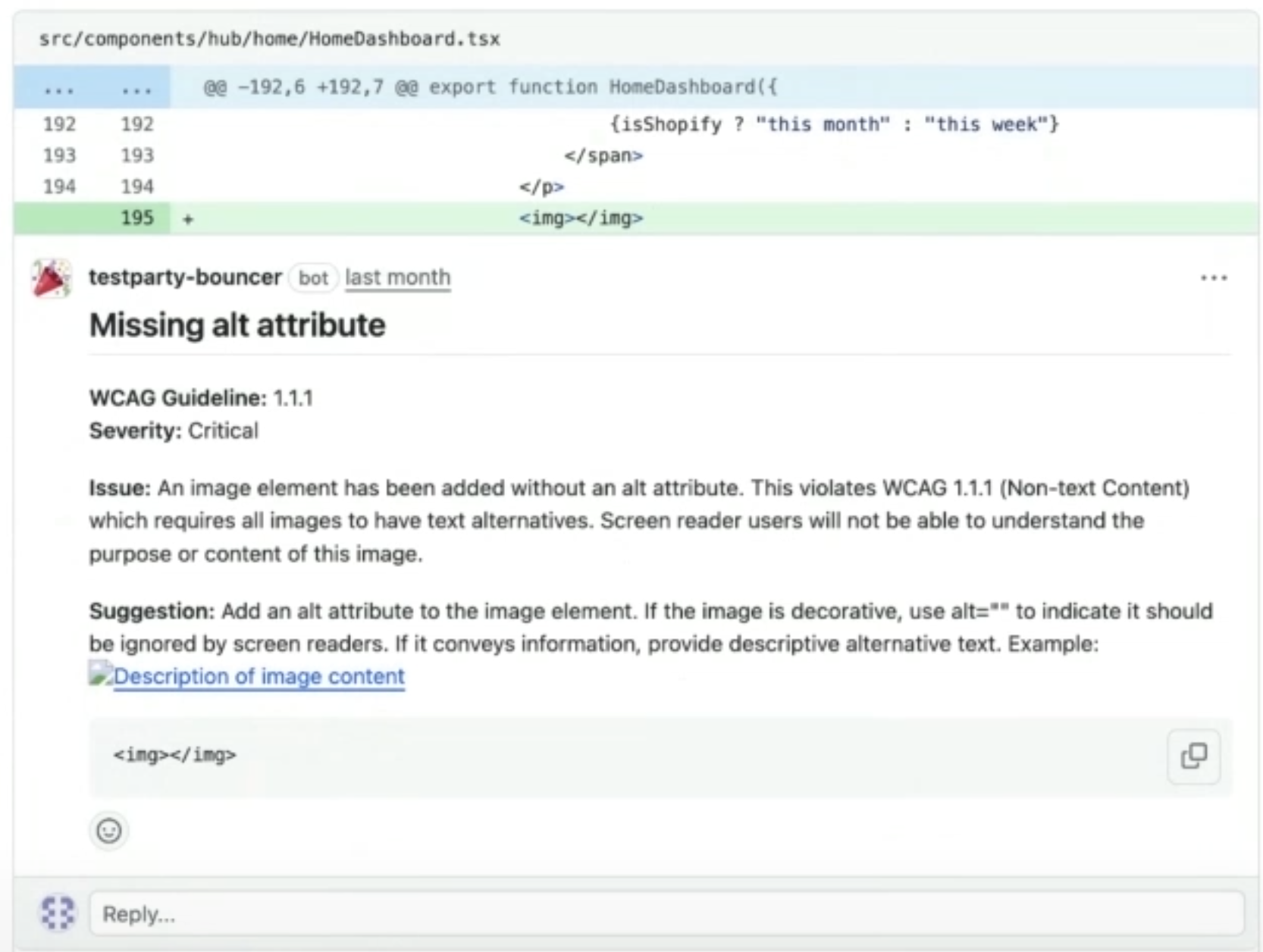
<img src="test.png">
-
(No alt attribute.)
-
Open a Pull Request
-
Commit your changes and open a PR to your main branch.
-
Expected Result: Bouncer will comment on the PR with detected issues.
-
-
Troubleshoot if No Comment Appears
-
Push a second commit to the same PR (to re-trigger events).
-
Check if events are blocked by your organization’s GitHub configuration.
-
If errors persist, involve your IT/security team to verify event delivery to TestParty servers.
-
Step 4: Interaction Steps for Protected Pages
If your app requires login or multiple interaction steps to access pages for scanning, you’ll need to define interaction steps in the TestParty Hub.
-
Login Flow
-
In TestParty Hub > Setup > Endpoints, add your login page URL.
-
Define interaction steps (e.g., input credentials, click sign-in).
-
Use custom selectors like id or aria-label for buttons/fields.
-
-
Dynamic Screens
-
After login, define further navigation steps (e.g., click “Start Review”).
-
Use Scan After Action for each step where you want a scan to trigger.
-
-
Best Practice
-
Keep steps minimal and stable (avoid relying on dynamic IDs or spans).
-
If components require hover, use a click fallback since hover is not currently supported.
-
Step 5: Monitoring & Results
-
View all PR comments and issue breakdowns directly in the GitHub PR conversation.
Step 6: Best Practices
-
Keep PRs small and focused. This makes Bouncer’s feedback easier to act on.
-
Test with a sample violation first before rolling out organization-wide.
-
Coordinate with your IT/security team to ensure no event-blocking occurs.
-
Use stable selectors for interaction steps to prevent flakiness.
Troubleshooting
|
Issue |
Fix |
|
No Bouncer comment on PR |
Check GitHub Webhook Deliveries for errors. |
|
CloudFront/Internal Server Errors |
IT team must allowlist GitHub webhook events. |
|
Bot installed but inactive |
Ensure the correct repository was selected. |
|
PR events delayed |
Push a new commit to retrigger the workflow. |
|
Login steps failing |
Validate selectors and try input/button swap. |